

You can change a whole Class’s passwords as a larger batch by following this method:
- In the Admin tab in the Teacher Dashboard, enter the Class of the students you wish you update.
- Click the checkboxes of the students to be changed to select them. A ‘Reset Password’ button will become available in the top navigation menu. Select this.
- Choose from two options how you would like to change the selected students’ passwords. The two methods are:
- Reset immediately. Doing this changes the students’ password instantly and you will need to distribute the new password to the students, for example by generating login letters. This could be more suitable for younger users that may need help with logging in.
- Student resets when they next log in. With this method, students can log in to their portal as normal with their current password, but when they do they will be informed that their password has been reset and they will not be able to proceed until they have acknowledged the change.
You will be shown a list of the students whose passwords are to be changed before confirming the action.
If you choose method 2, these are the steps the student must follow:
Step 1:
On logging in with their current password the student will see this message:
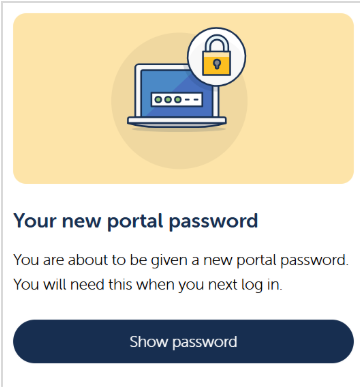
Step 2:
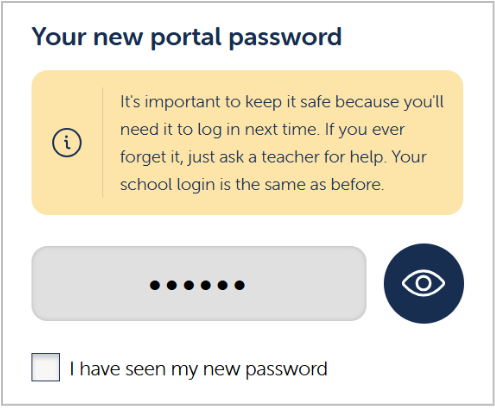
Students must click the eye icon to reveal their new password. They should make a safe note of this and then check the box to acknowledge that they have seen their new password. Note, the password is not editable by the student.
Step 3:
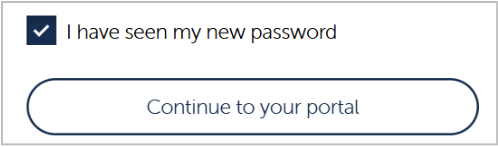
On clicking the ‘Continue to your portal’ button, the student will be logged in as normal and their new password will be active.
When a student password reset has been done this way, you will be able to see which students have completed this process and which have not in the teacher dashboard.
Where the student has yet to acknowledge their new password and login, this will show as ‘Pending’:
